
How to Setup My Google Business Profile – Explained in Easy Steps
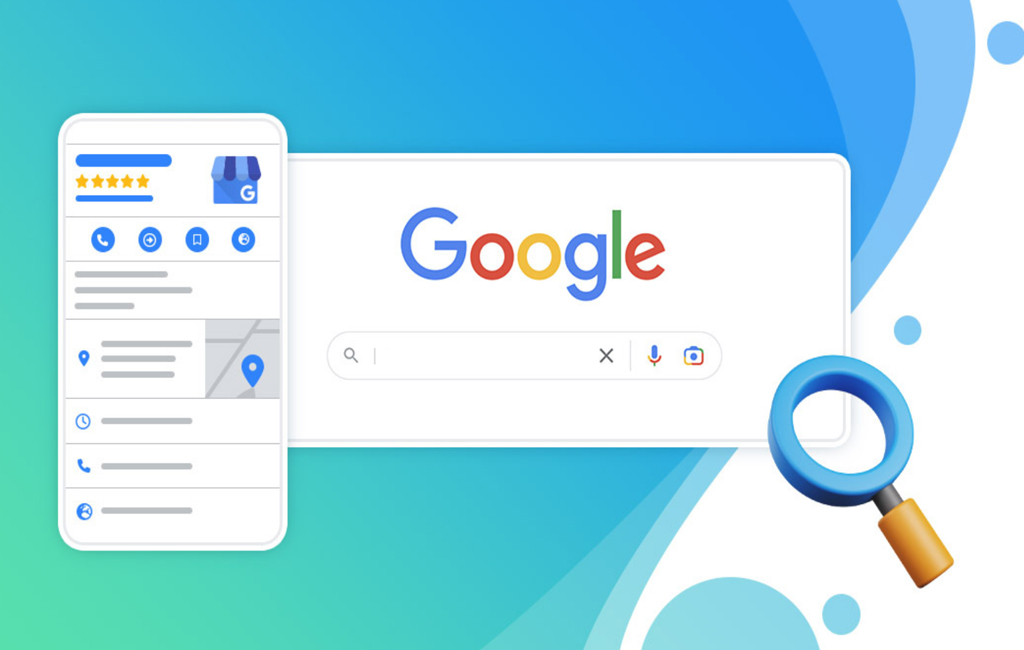
Google Business Profile formerly known as Google My Business is a simple and free tool that helps business owners connect with people who are searching for their services on Google Search and Google Maps.
With a proper listing, your business can appear when customers are actively looking for what you offer, which makes it easier to reach new people and grow your audience.
Google Business Profile helps you control how your business shows up on Google. It improves your visibility in search results, builds trust through customer reviews, and allows you to manage important details like your address, phone number, and working hours.
Keeping your profile updated can make it easier for customers to find and choose your business.
This guide will cover why it’s important to have a Google Business Profile, how to set up your profile, and how you can optimize your profile. Let’s get started.
How to Create a Google Business Profile from Start
If your business does not show up on Google yet, you can create your own Google Business Profile in a few simple steps. It usually takes around 15 minutes to set up, but you may need extra time for verification.
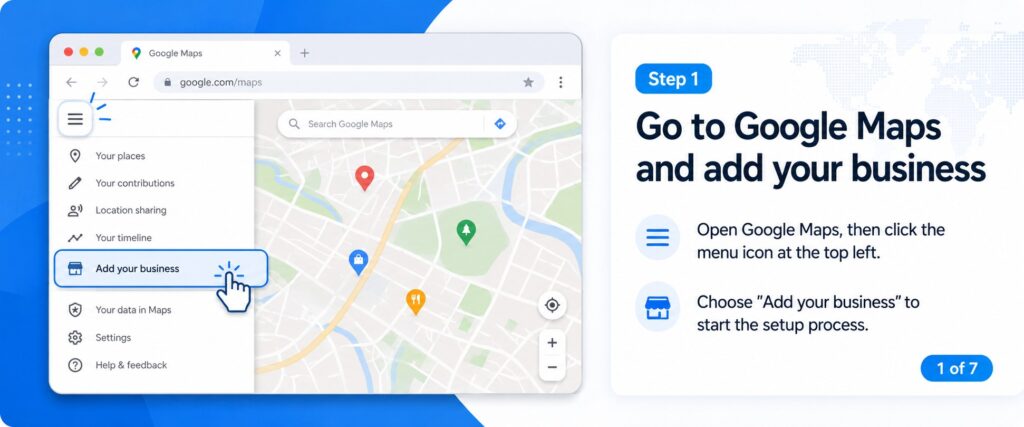
Step 1. Go to Google Maps and add your business
Open Google Maps, then click the menu icon at the top left. From there, choose “Add your business” to start the setup process.
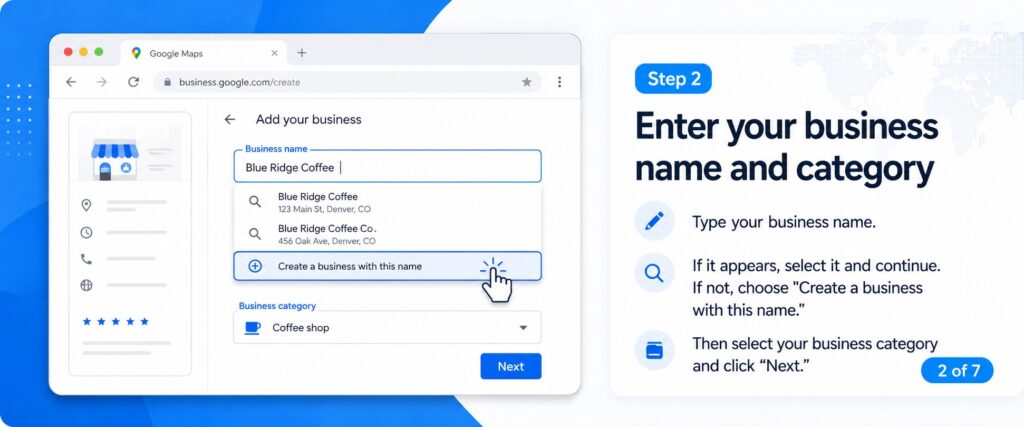
Step 2. Enter your business name and category
Type your business name. If it appears in the list, select it and continue. If not, choose “Create a business with this name.” Then select your business category and click “Next.”
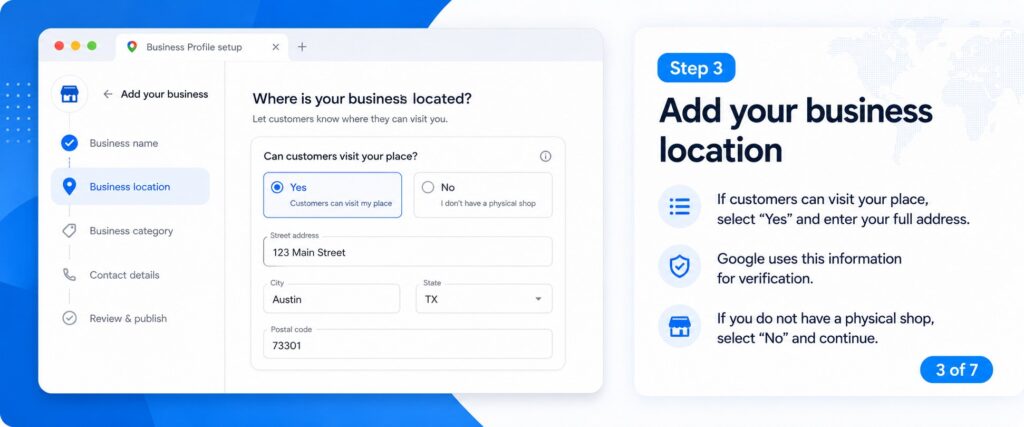
Step 3. Add your business location
If customers can visit your place, select “Yes” and enter your full address carefully. This information is important because Google uses it for verification. If you do not have a physical shop, you can select “No” and continue.
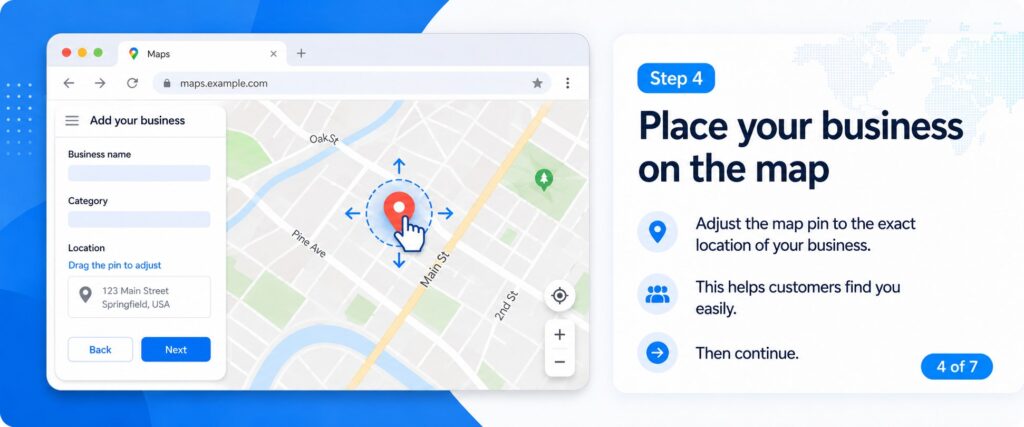
Step 4. Place your business on the map
Google may ask you to adjust the map pin. Move it to the exact location of your business so customers can find you easily, then continue.
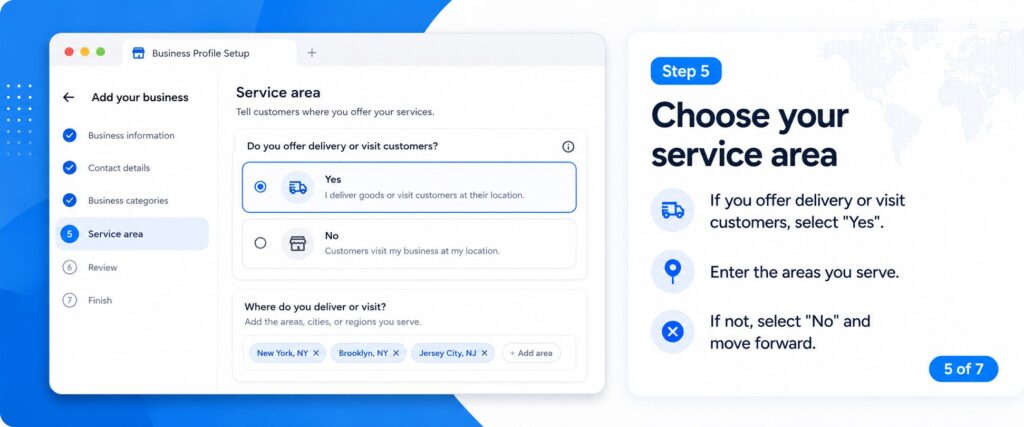
Step 5. Choose your service area
If you offer delivery or visit customers, select “Yes” and enter the areas you serve. If not, select “No” and move forward.
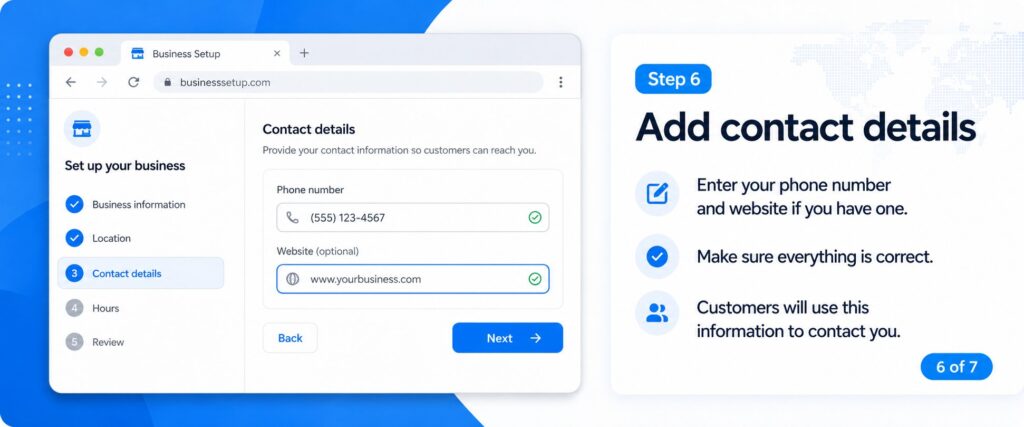
Step 6. Add contact details
Enter your phone number and website if you have one. Make sure everything is correct because customers will use this information to contact you.
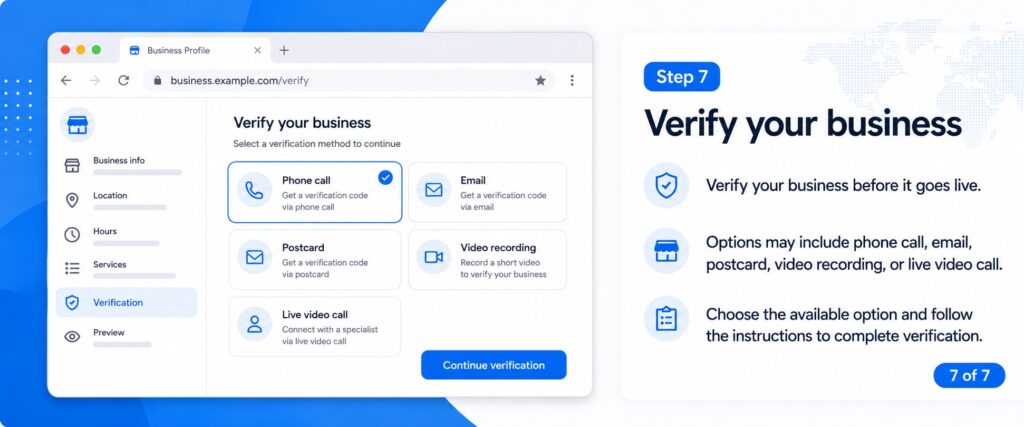
Step 7. Verify your business
Google will ask you to verify your business before it goes live. You may get different options like phone call, email, postcard, video recording, or live video call. Choose the option given to you and follow the instructions to complete verification.
How to Claim an Existing Google Business Profile
If your business already appears on Google, you can claim it using your Google Business Profile so you can control and update your business details.
Here is a simple way to do it. Search your business name on Google. When your listing appears, click it and look for the option “Own this business?” Then follow the steps to verify and claim it.
Sometimes you may find your business already listed even if you did not create it. This can happen in two common situations.
One situation is when Google creates a listing automatically using information from other websites. In this case, you will see a “Manage now” option.
Another situation is when another person has already created the listing. In this case, you may see part of their email address and an option called “Request access” so you can take control of the profile.
How to Claim an Automatically Created Google Business Profile
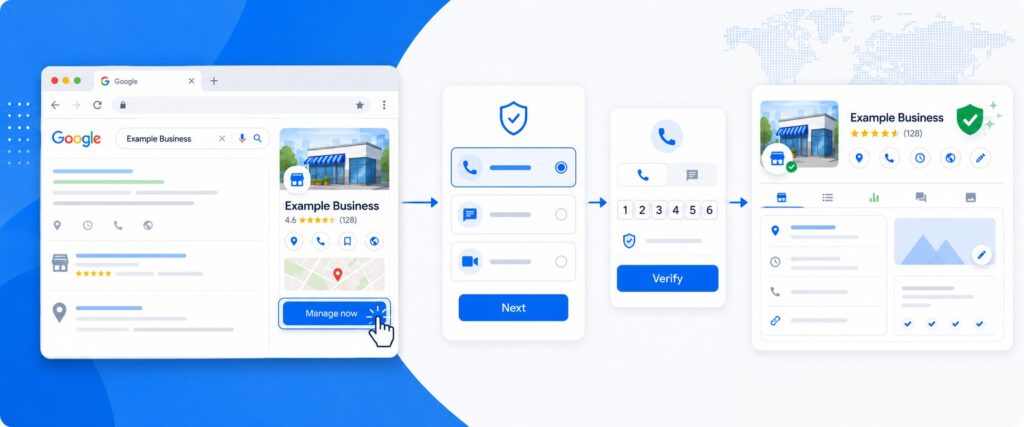
If your business already shows on Google, you can manage it using your Google Business Profile even if you did not create it yourself. Sometimes Google creates a listing automatically using information from other websites.
To claim it, search your business on Google and open the listing. Click the “Manage now” option to start the claiming process.
Next, Google will ask you to verify that you are the real owner of the business. You may see options like phone call, text message, or video verification. Choose the option that works best for you and click “Next.”
If you choose phone verification, you can receive a code by call or text message. Select your preference and continue.
After that, enter the code you receive into the box provided. Then click “Verify” to complete the process.
Once verification is done, you will get full control of your Google Business Profile and can update your business information anytime.
Conclusion
Setting up and managing your Google Business Profile is one of the best ways to improve your online visibility and attract more local customers.
From creating a new profile to claiming an existing listing, every step helps your business appear more trustworthy and easier to find on Google Search and Google Maps.
But keeping your profile fully optimized takes time and consistency. You need to update business information, respond to reviews, upload photos, and make sure your profile stays active to get the best results.
That is where Pink Socials can help. Their Google Business Profile management services are designed to help businesses improve local visibility, manage customer engagement, and grow faster on Google without the stress of handling everything on their own.
Whether you are setting up a profile for the first time or want to improve your current listing, PikSocials can help you get the most out of your Google Business Profile.



Leave a Reply